


KUKURI helps you give an AI a set of instructions for how you want it to talk and work.
KUKURI calls a set of instructions such as “Answer with the conclusion first” or “Make a plan before you start” an “AI rule”. Once you give an AI one of these rules, you do not have to type the same requests every time. You can use the rule as it is or adjust it to fit your needs.
On this page, ChatGPT, Claude and Gemini are called “chat AIs”. To use an AI rule with a chat AI, copy the rule’s text and paste it into the AI’s settings. This is where the AI stores instructions it should always follow. Claude Code, Codex and Antigravity are called “AI agents”. To use an AI rule with an AI agent, download the rule as a file and put it in the folder where you want the AI to work.
Choose “Use with a chat AI” for ChatGPT, Claude or Gemini, and “Use with an AI agent” for Claude Code, Codex or Antigravity.
Follow these steps to paste an AI rule into ChatGPT, Claude or Gemini.
Find an AI rule
You can search for AI rules and read them without logging in. A login prompt appears only when you press an action that uses the rule, such as copy or download.
Press “Search” in the menu at the very top of the screen. The “Search AI rules & parts” screen opens.
Under “What to search”, make sure “Find AI rules” is selected. In the search box at the top, type what you want the AI to do and press “Search” (for example: “rewrite text”). A list appears below.
If you are not sure what to type, press “Filter (usage, token-saving, AI tags)”. Under “Usage” (the kind of job you want the AI to do, such as writing, coding or research), pick the closest one. You can leave “Token-saving” and “AI tags” as they are the first time. Finally, press “Search with these filters”.
Open the AI rule
The list has “AI rules” and “parts”. Start with the “AI rules”. An AI rule is a finished set you can use as it is; a part is a small instruction you can add to an AI rule.
Press the box for the AI rule you want to try. A screen with the full text opens. If it is not what you want, use your browser's Back button to return to the list.
Press “Copy to workspace”
This screen has two buttons, “Copy to workspace” and “Download”. For a chat AI, press “Copy to workspace” (“Download” is for using the rule as a file).
The original AI rule stays as it is, and you get your own copy.

Move to the workspace screen
When the copy is done, you are taken to the “Edit” screen automatically. This screen is the “workspace”, where you adjust an AI rule to fit you. You do not have to change anything right now.
Press “Use in web AI”
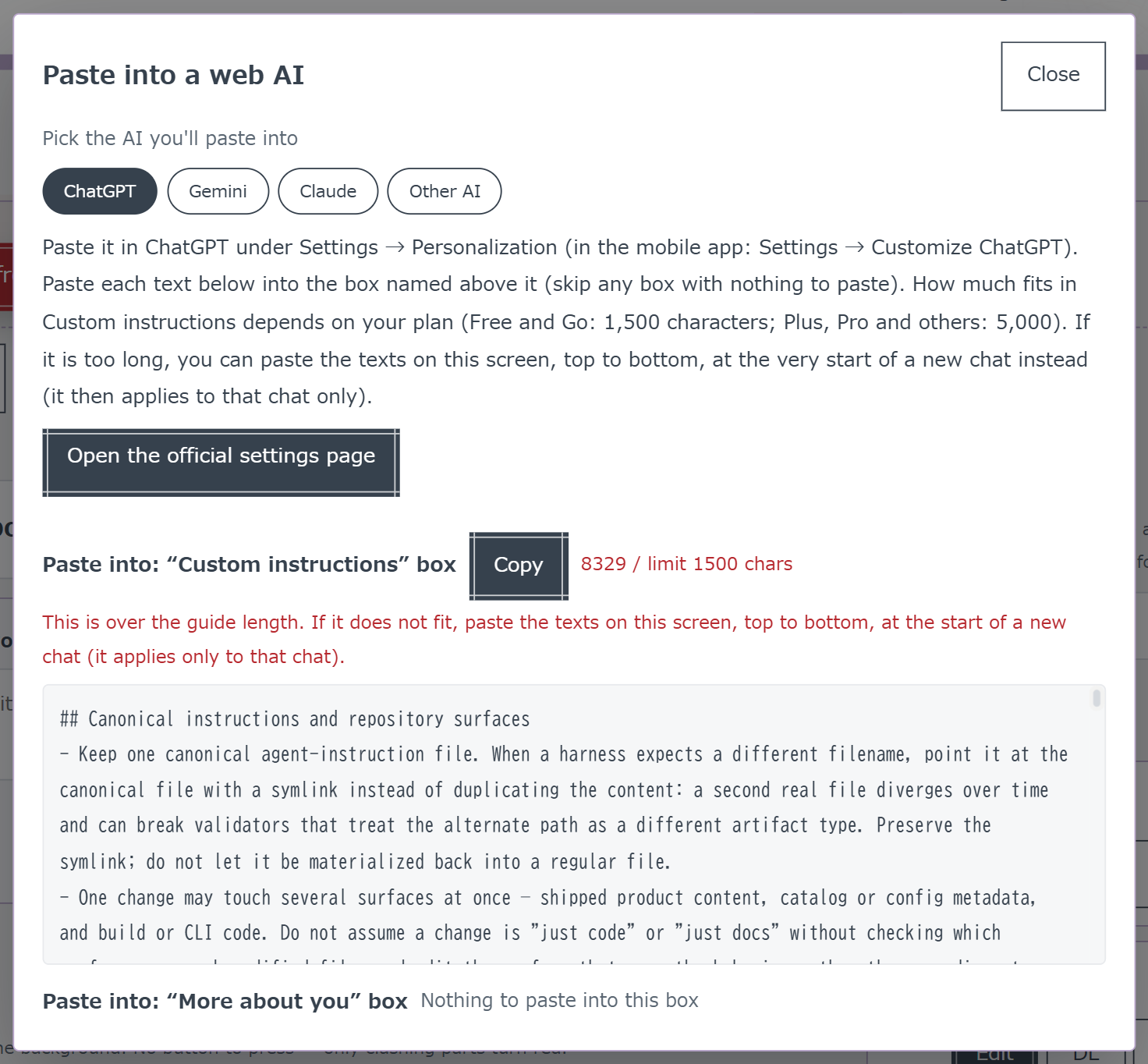
Near the top of the workspace you see “Download”, “Use in web AI” and “Delete”. Press “Use in web AI”. A paste screen called “Paste into a web AI” opens.

Pick the AI you use
Under “Pick the AI you'll paste into”, press the AI you use. Where to paste and how to do it are shown.
If “Open the official settings page” appears, press it to open that AI’s settings in a new tab. If the button does not appear, open that AI yourself.
Copy and paste into the AI’s settings
Press “Copy” in the order shown, and paste into the field described in the AI’s settings (press the field, then right-click on a PC or long-press on a phone and choose “Paste”). After you paste everything, save the settings in that AI. You are done.
Next: Find an AI rule →
Follow these steps to have Claude Code, Codex or Antigravity read an AI rule from a file.
Claude Code, Codex and Antigravity work by reading the files in a folder on your computer. On this page, the folder that holds the text, images or code you want the AI to work on is called the “project folder”.
An AI agent reads a file with a fixed name in the project folder and follows the instructions in it. The file names and the tools that read them are:
You can download a KUKURI AI rule and use it as one of these files without changing its contents. If your tool is not listed but reads AGENTS.md, follow the same steps.
Find an AI rule
You can search for AI rules and read them without logging in. A login prompt appears only when you press an action that uses the rule, such as copy or download.
Press “Search” in the menu at the very top of the screen. The “Search AI rules & parts” screen opens.
Under “What to search”, make sure “Find AI rules” is selected. In the search box at the top, type what you want the AI to do and press “Search” (for example: “rewrite text”). A list appears below.
If you are not sure what to type, press “Filter (usage, token-saving, AI tags)”. Under “Usage” (the kind of job you want the AI to do, such as writing, coding or research), pick the closest one. You can leave “Token-saving” and “AI tags” as they are the first time. Finally, press “Search with these filters”.
Open the AI rule
The list has “AI rules” and “parts”. Start with the “AI rules”. An AI rule is a finished set you can use as it is; a part is a small instruction you can add to an AI rule.
Press the box for the AI rule you want to try. A screen with the full text opens. If it is not what you want, use your browser's Back button to return to the list.
Press “Download”
This screen has two buttons, “Copy to workspace” and “Download”. To use the rule as it is, press “Download” (“Copy to workspace” is for adjusting it first).
The AI rule in the language you are viewing is saved to your computer’s “Downloads” folder under the name AGENTS.md. If you want another language, first press your round profile icon at the top right. On the “Settings” screen, choose a language under “Display language” and press “Save”. Then return to the AI rule screen.
Move the file into the project folder
Move AGENTS.md from the “Downloads” folder into the project folder you want the AI to work in.
Tools that read AGENTS.md, such as Codex, can use it under that name. For Claude Code, rename it to CLAUDE.md; for Antigravity, rename it to GEMINI.md.
Open that folder in the AI agent
Open the project folder in Claude Code, Codex or Antigravity. The AI reads the file and follows it. If the tool was already open, close it and open it again.
Open the AI rule and press “Copy to workspace”
Open an AI rule with steps 1 and 2 above and press “Copy to workspace”. The original stays as it is, you get your own copy, and you are taken to the “Edit” screen automatically. This screen is the “workspace”, where you adjust an AI rule to fit you.
Adjust it in the workspace
An AI rule is a combination of “parts” (small instructions). You can edit the text, remove parts you do not need, and change the order.
To add a part, switch “What to search” on the search screen to “Find parts”, open the part and press “+ Add to this AI rule”. The button changes to “✓ Added to this AI rule”. When you are done, press “Edit” in the menu at the very top to return to the workspace.
Check the “Clashing” and “Heads-up” marks
When two instructions are hard to follow at the same time, a part gets one of these marks. Read the explanation shown, then remove the part you do not need or fix the text.
Press “Download” and choose the format and language
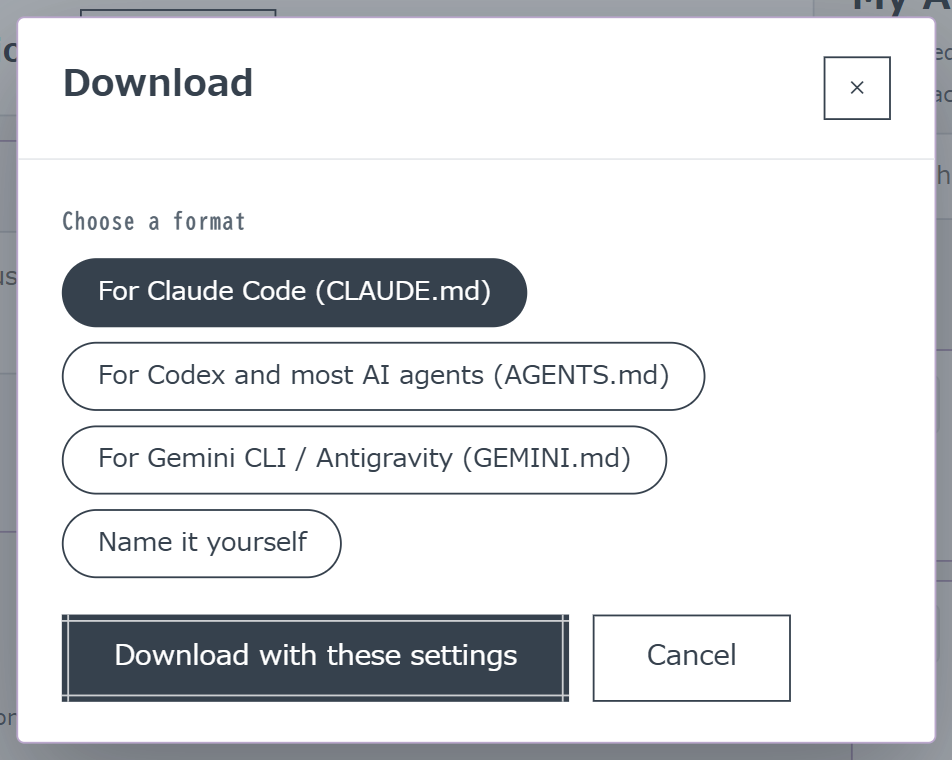
Press “Download” near the top of the workspace. A screen for choosing the format and language opens.
Under “Choose a format”, press the format for your tool: For Claude Code (CLAUDE.md), For Codex and most AI agents (AGENTS.md) or For Gemini CLI / Antigravity (GEMINI.md). Press “Name it yourself” and type a name only when your tool asks for a different file name.
Under “Download language”, choose “Native” to keep the saved text, or “English” to use English versions of official parts. Text you write or edit is not translated.
Press “Download with these settings”. The file is saved to your computer’s “Downloads” folder.
Move the file into the project folder
Move the file from the “Downloads” folder into the project folder you want the AI to work in.
Open that folder in the AI agent
Open the project folder in Claude Code, Codex or Antigravity. The AI reads the file and follows it. If the tool was already open, close it and open it again.
Next: Find an AI rule →